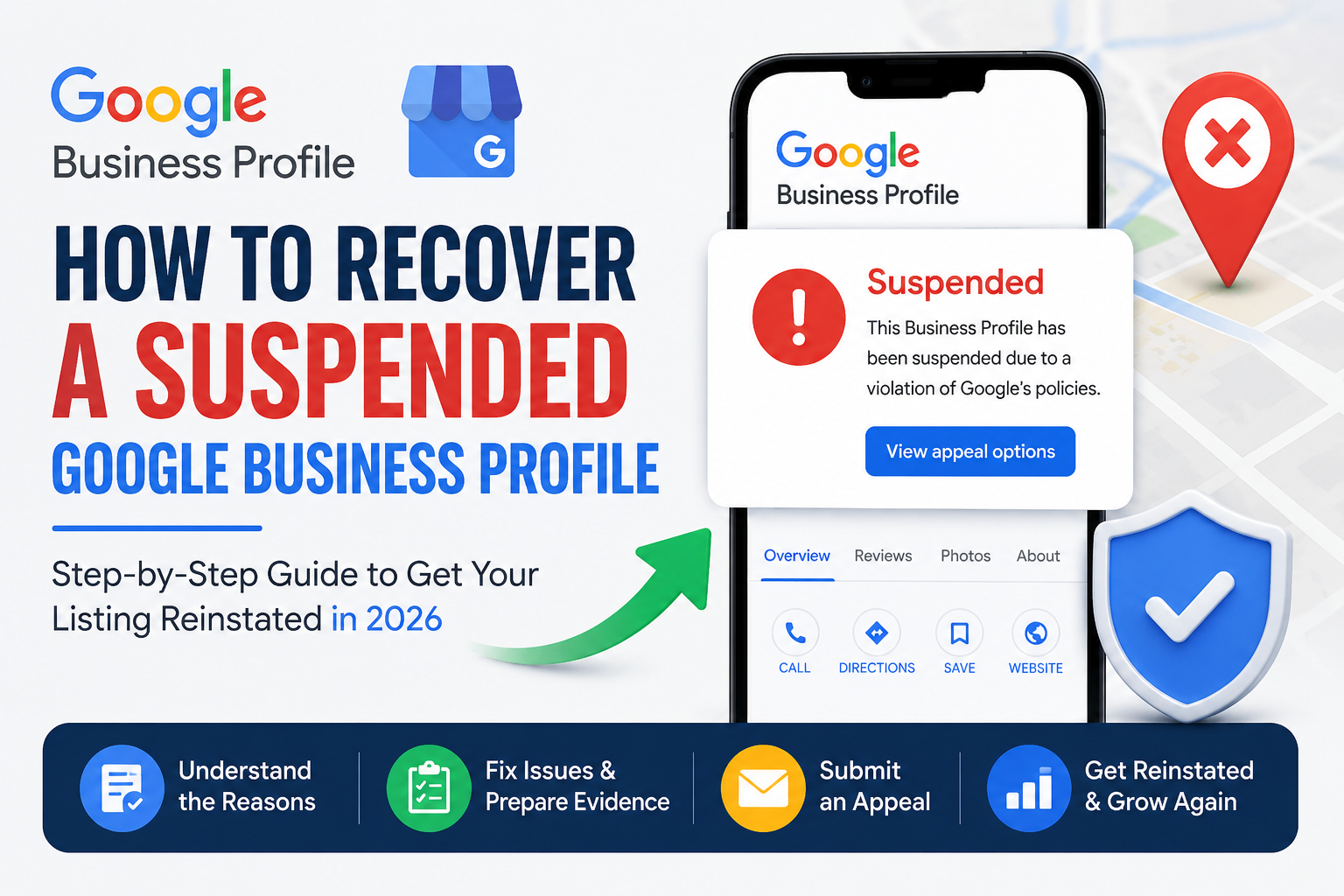



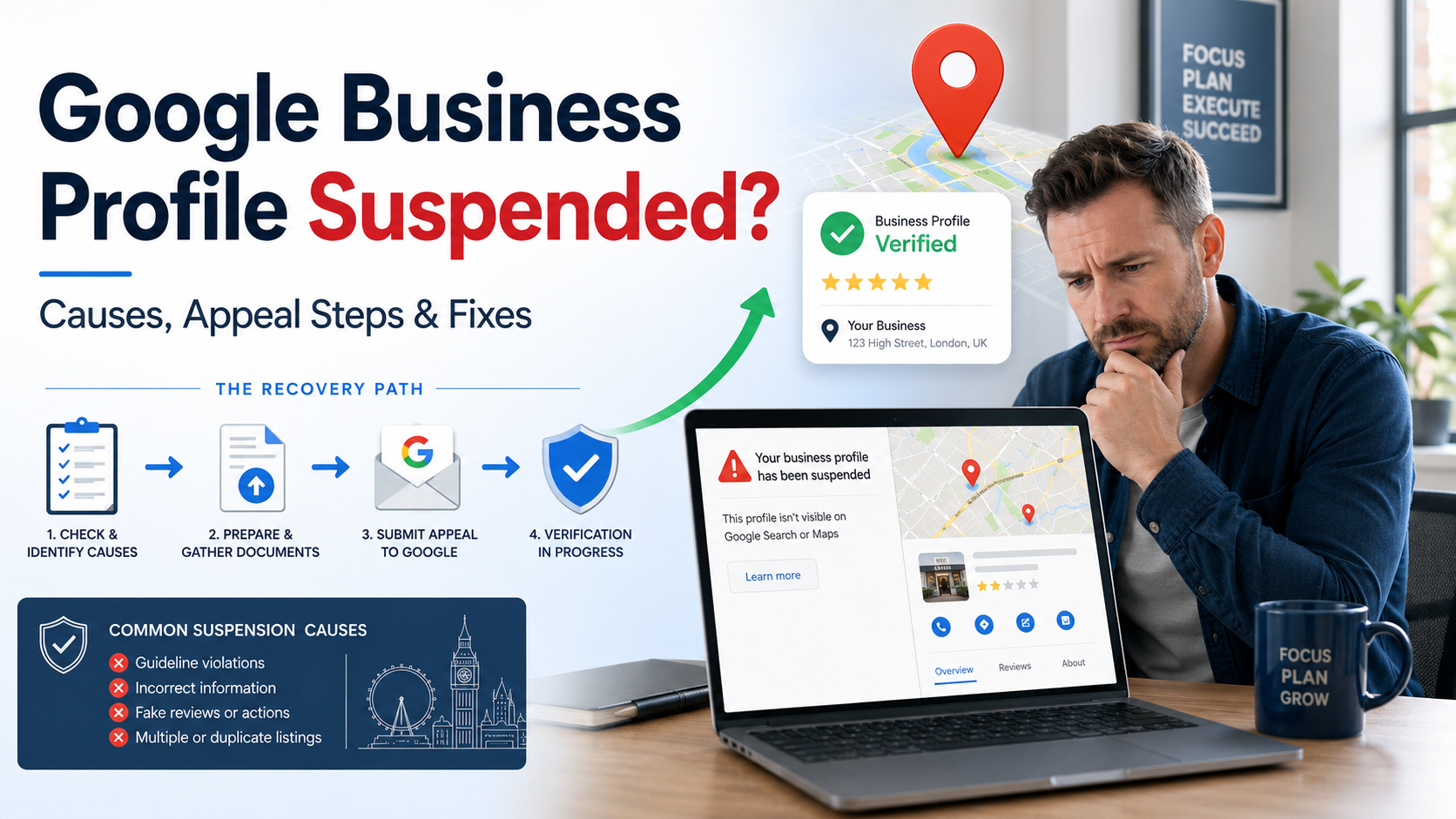
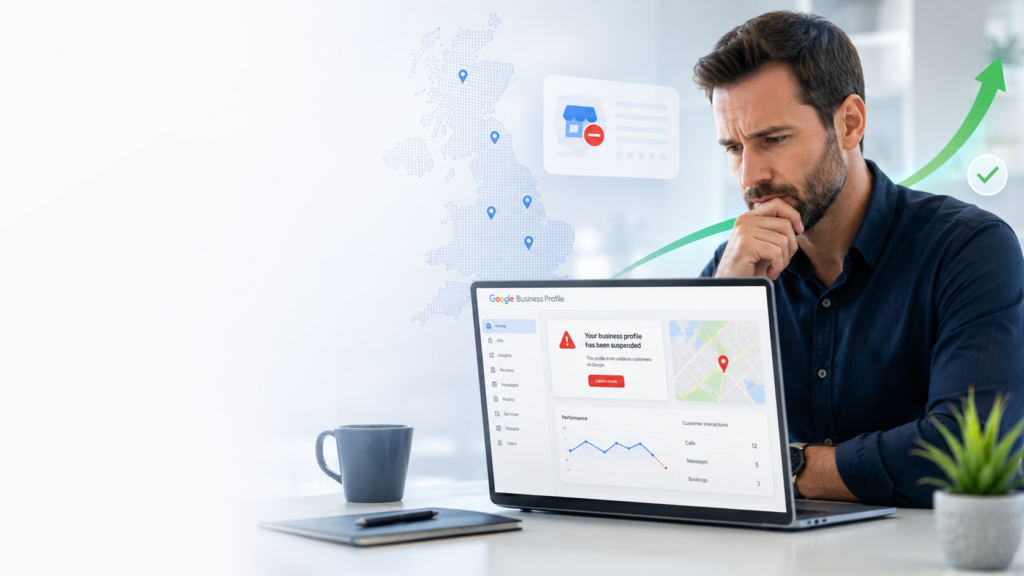
A suspended Google Business Profile can suddenly stop a local business from appearing properly on Google Search and Google Maps.
Customers may no longer be able to find your opening hours, telephone number, reviews, directions or website link. For a restaurant, plumber, dentist, solicitor, clinic or other local business, this can quickly reduce calls, bookings and enquiries.
Many business owners react by submitting an appeal immediately. Others create a new profile or make several random changes.
These actions can make the situation more confusing.
The safest approach is to identify the likely problem, correct the profile and prepare strong evidence before requesting reinstatement.
This guide explains why a Google Business Profile may be suspended, what to check before appealing and how UK businesses can complete the reinstatement process without making the problem worse.
What Should You Do After a Google Business Profile Suspension?
If your Google Business Profile has been suspended:
- Do not create another profile.
- Do not submit an appeal immediately.
- Check whether your Google Account is restricted.
- Review your business name, address and category.
- Confirm that your business is eligible for a profile.
- Correct any policy problems.
- Prepare your business documents.
- Submit one clear appeal through the official appeals tool.
- Add your evidence within the allowed time.
- Wait for the decision before submitting anything else.
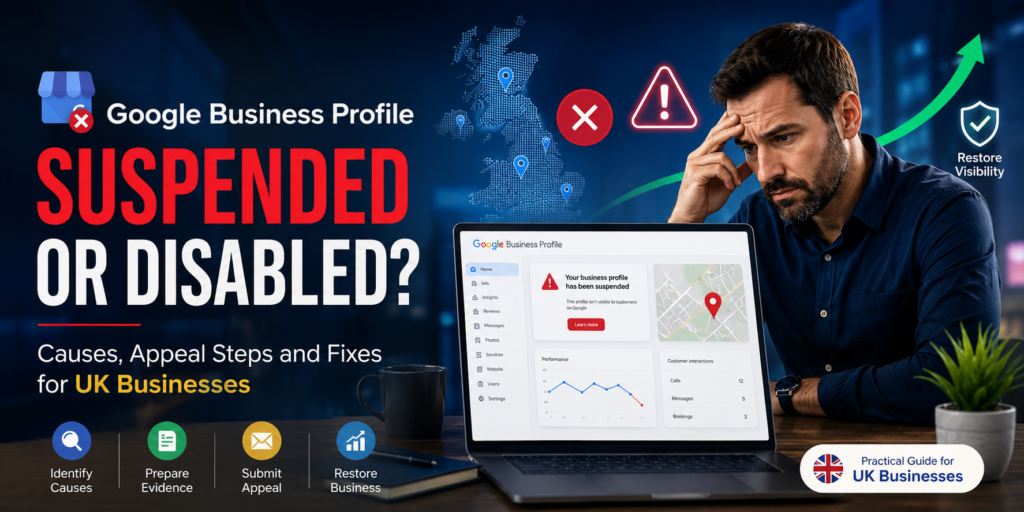
Google advises businesses not to create a new profile for the same company while an appeal is under review. It also recommends preparing supporting documents before starting the appeal process.
Suspended, Disabled and Unverified Profiles: What Is the Difference?
These situations can look similar, but they do not always require the same action.
Unverified profile
An unverified profile has not completed Google’s verification process.
Some profile information may not appear publicly until verification is complete. Google may ask for phone, email, post, video or another available verification method.
Suspended or disabled profile
A suspended or disabled profile has been restricted, usually because Google believes the profile, account or information may not follow its policies.
The profile may disappear from public view, and the owner may lose the ability to manage it normally.
Restricted Google Account
Sometimes the problem is not limited to one business profile.
If the Google Account managing the profile is restricted from Business Profile activity, all profiles connected to that account may be suspended. The account restriction must be resolved before the individual profiles can be successfully reinstated.
Do not rely only on the wording of the warning message. Open the appeals tool and review the profile, moderation reason and policy information shown there.
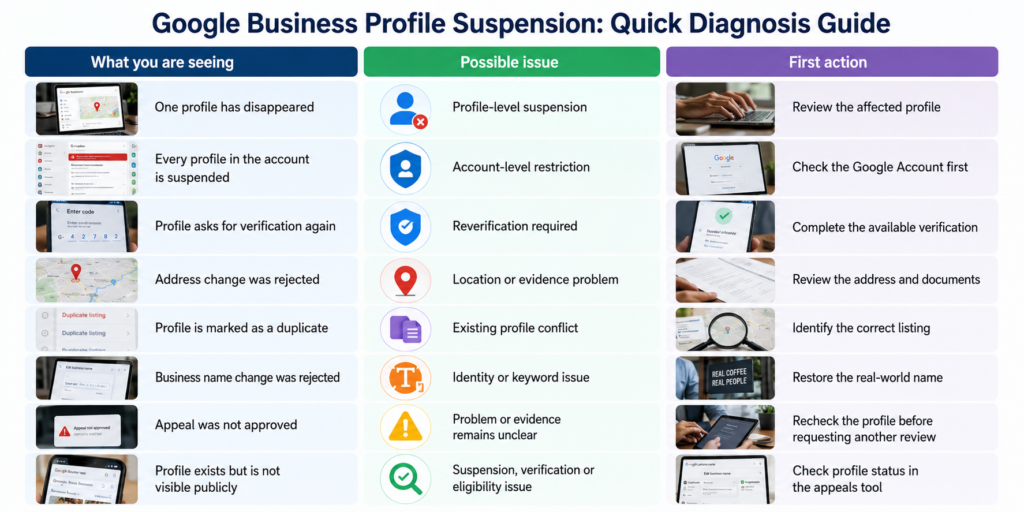
Quick Suspension Diagnosis
Do Not Appeal Before Completing a Profile Audit
Seeing a suspension notice can create panic, especially when Google Maps generates an important share of your leads.
However, an appeal should not be treated as a request for Google to diagnose your profile.
Your appeal should show that:
- The business is real
- The business is eligible
- The profile information is accurate
- Any policy problem has been corrected
- Your documents support the information shown on the profile
Submitting the same information without correcting the underlying problem can lead to a rejected appeal.
Before appealing, save a copy of your current profile information and review every field carefully.
Check:
- Business name
- Address
- Service area
- Primary category
- Additional categories
- Telephone number
- Website
- Opening hours
- Business description
- Profile owners and managers
- Duplicate listings
- Business eligibility
1. Your Business Name Contains Extra Keywords
Keyword stuffing is one of the most common Google Business Profile problems.
It happens when a business adds services, locations, marketing claims or telephone information to its profile name.
For example:
Incorrect:
Johnson Plumbing – Emergency Plumber Manchester 24/7
Correct:
Johnson Plumbing
The name on your profile should match the name used in the real world, including your signage, website, invoices and stationery.
Google says unnecessary information in a business name is not permitted and may result in profile suspension. Examples of unnecessary information include marketing taglines, service details, locations, opening hours and telephone numbers.
How to fix it
Use the business name customers genuinely know.
Remove:
- Service keywords
- Town or city names that are not part of the real name
- “Best,” “cheap” or similar claims
- Opening-hour information
- Telephone numbers
- Website addresses
- Unnecessary legal descriptions
If “Ltd” or another legal term is genuinely part of the name you use publicly, make sure you have consistent real-world proof.
The goal is not to create the most searchable name. It is to represent the real business accurately.
2. Your Address Is Incorrect or Cannot Be Verified
Your profile address should represent the real place where the business operates.
Problems can happen when a profile uses:
- An old address
- A family member’s address
- A PO box
- A mailbox
- An empty property
- A location where the business is not present
- An address that does not match business documents
- Additional keywords inside the address field
Google requires businesses to use a precise, accurate address or service area. PO boxes and remote mailboxes are not accepted as business locations. A business displaying its address should normally have permanent signage and be able to receive customers there during its stated hours.
How to fix it
Check that:
- The street address is complete
- The postcode is correct
- The building or unit number is included where needed
- The map pin is placed correctly
- The business genuinely operates there
- Your official documents support the address
- Permanent signage is present for a storefront
Do not add directions, services or keywords to the address lines.
If you have moved, update the existing profile rather than creating a completely new one for the same business.
3. You Are Using an Ineligible Virtual Office
A virtual office can provide a mailing address, but that does not automatically make it an eligible Google Business Profile location.
Google states that a rented mailing address where the business does not operate is not eligible.
A business may use an office in a coworking space only when:
- It has clear signage
- Its own staff are present during business hours
- Customers can visit the business there
- The company genuinely operates from that office
A desk, mailbox or occasional meeting room is not enough by itself.
How to fix it
Ask:
- Do customers genuinely visit this location?
- Is my team present during the hours shown?
- Is permanent business signage displayed?
- Can I prove that the company operates there?
- Is this only a postal address?
If it is only a mailing address, remove it and use a valid business model and location setup.
Do not replace one virtual address with another before understanding the eligibility problem.
4. Your Service-Area Business Is Set Up Like a Storefront
A service-area business travels to customers instead of serving them at its own address.
Examples include:
- Plumbers
- Electricians
- Locksmiths
- Mobile cleaners
- Home-care providers
- Mobile mechanics
- Delivery services
If customers do not visit your business address, that address should normally be hidden from the public profile.
Google says service-area businesses should remove their address when they do not serve customers there. They can list up to 20 specific service areas using cities, postcodes or other recognised areas. Google also advises that the overall service area should normally remain within about two hours’ driving distance of the business base.
How to fix it
Choose the correct setup:
Storefront business
Use this when customers visit your permanent location during your stated hours.
Service-area business
Use this when you visit customers and do not receive them at your address.
Hybrid business
Use this when customers visit your location and you also deliver or travel to them.
Do not display a residential address simply because you want to rank near it.
You can still use a home address privately for verification where appropriate, but it should not be publicly displayed if customers are not served there.
5. You Have Duplicate Business Profiles
A business should normally have one profile for each genuine and eligible location.
Duplicate profiles can be created when:
- A previous employee made a profile
- An agency created another listing
- The business moved
- The owner forgot the original login
- A new profile was created after suspension
- Separate profiles were created for different services
- Google already had an unclaimed listing
Duplicate profiles can divide reviews, show conflicting information and create ownership problems.
Google advises businesses not to create separate profiles for every service. It also says businesses that move should update the existing profile rather than create a new listing.
How to fix it
Search Google Maps using:
- Your business name
- Telephone number
- Current address
- Previous address
- Common name variations
Identify:
- Which profile is verified
- Which profile contains genuine reviews
- Which profile has correct information
- Which profile should remain active
Do not mark a duplicate as permanently closed without understanding the possible effect.
Depending on the situation, you may need to remove an accidental profile from your account, report a duplicate or request a merge.
6. Your Business Is Not Eligible for a Google Business Profile
Not every business can create a Google Business Profile.
Google generally requires an eligible business to make in-person contact with customers during its stated hours.
Examples of businesses that may not qualify include:
- Online-only shops without in-person customer contact
- Lead-generation businesses
- Brands without a customer-facing business operation
- Certain rental properties
- Classes or services held at locations the business does not own or control
Google’s policy states that online-only businesses and lead-generation companies are not eligible for standard Business Profiles.
How to check eligibility
Ask:
- Do we meet customers in person?
- Do customers visit us, or do we visit them?
- Do we operate during the hours shown?
- Do we control the business location?
- Is this a real business rather than a lead-selling page?
- Can we prove genuine business activity?
An ecommerce website that only ships products and never meets customers may not qualify.
Do not invent a customer-facing location to solve an eligibility problem.
7. Your Category Does Not Match the Real Business
Your primary category tells Google what your business is.
Choosing a category simply because it has high search demand can make the profile look misleading.
For example, a marketing consultant should not choose “advertising agency” unless the business genuinely operates as one. A general builder should not select several specialist categories for services it does not actually provide.
How to fix it
Choose:
- One primary category that best describes the main business
- Only relevant additional categories
- Categories supported by your website and real services
Your category, business name, website and description should tell one consistent story.
A profile becomes difficult to trust when:
- The category says plumber
- The website promotes general construction
- The name includes emergency drainage
- The address belongs to a virtual office
Each detail may appear small, but together they can create a serious identity mismatch.
8. Your Website and Profile Show Different Business Information
Google may compare your profile with information from your website and other online sources.
An appeal becomes weaker when your documents say one thing while your profile and website say something else.
Common inconsistencies include:
- Different business names
- Different telephone numbers
- An old address on the website
- A website for another brand
- A service page that does not mention the business
- A redirect to an unrelated website
- Missing contact details
- A location page created only for rankings
Google asks businesses to provide a telephone number and website that represent the actual individual business location. Redirecting users to another business or unrelated landing page is not permitted.
How to fix it
Update your website before submitting the appeal.
Make sure the website clearly shows:
- Real business name
- Correct telephone number
- Correct address or service area
- Main services
- Contact page
- Company information
- Genuine location details
Your profile, website and evidence should support the same business identity.
For broader website visibility problems, internally link this section to Rugmaz’s guide: Why Is My Website Not Ranking on Google?
9. The Business Changed Identity or Location Too Drastically
A profile should represent one continuing business.
Changing an old profile into a completely different business can look like an attempt to reuse its reviews, age or ranking history.
Examples include:
- Changing a restaurant profile into a marketing agency
- Replacing one company name with an unrelated company
- Moving the profile to a distant location
- Changing the main category to a different industry
- Buying an old business and replacing its identity completely
Google may reject edits that significantly change the nature, name, category or location of a business. If a different business now operates at the location, the old business may need to be marked closed rather than renamed.
How to fix it
Determine whether this is:
- The same business with a small update
- A genuine rebrand
- A relocation
- A completely new business
For a real rebrand, keep evidence such as:
- Companies House information
- Updated invoices
- New signage
- Website announcements
- Branding documents
- Address documents
Do not use an unrelated old profile simply because it already has reviews.
10. An Owner or Manager Account Is Restricted
A profile may be accurate while the Google Account managing it has a restriction.
Google says that when a merchant account is restricted from Business Profile activity, all Business Profiles associated with that account can be suspended.
The account restriction must be resolved first. After the account is reinstated, individual profile appeals may still be required.
How to identify this problem
Possible signs include:
- Several profiles are suspended together
- You cannot create or claim another profile
- The appeal tool mentions an account restriction
- Content added from the account is rejected
- An agency or manager account controls many affected profiles
How to fix it
Review all account owners and managers.
Check:
- Who has primary ownership
- Which agency accounts have access
- Whether former employees still have access
- Whether an unfamiliar account was added
- Whether the main Google Account is in good standing
If the account itself is restricted, appeal that restriction through the relevant account process first.
Business owners should keep primary ownership under an account they control rather than allowing an outside agency to become the only owner.
11. Your Profile Contains Misleading or Unsupported Information
A profile should help customers understand the real business.
Problems may arise when the profile contains information that cannot be supported, such as:
- Services the business does not provide
- False opening hours
- A location where no one is present
- Misleading claims
- Irrelevant promotional content
- Unrelated categories
- A telephone number belonging to another company
- A website that generates leads for several businesses
- Photographs representing a different location
Google requires profile content to represent the real business accurately and may restrict content, profile access or merchant accounts when violations occur.
How to fix it
Remove anything you cannot prove.
Use simple, accurate information:
- What the business is
- What it provides
- Where it operates
- When it is available
- How customers can contact it
Do not turn the profile into an advertisement full of claims.
Accuracy is more important than adding as many keywords as possible.
Documents to Prepare Before Opening the Appeal Form
Do not open the evidence form until your files are ready.
Google states that once the evidence form is opened, the evidence must be submitted within 60 minutes or it will not be attached to the appeal.
Core supporting documents
Google lists examples such as:
- Official business registration
- Business licence
- Tax certificate
- Electricity bill
- Telephone bill
- Water bill
- Internet bill
The business name and address on the documents should match the profile being appealed.
Additional evidence to prepare
Depending on your business type, also keep these ready:
Storefront business
- Clear exterior photographs
- Permanent business signage
- Street number
- Interior working area
- Proof that customers visit the location
- Current invoices or stationery
Service-area business
- Business registration
- Invoices
- Work tools and equipment
- Branded vehicle
- Business cards
- Proof of operating location
- Service-area information
Hybrid business
- Permanent location signage
- Customer-facing premises
- Delivery or service equipment
- Opening-hour evidence
- Business documents
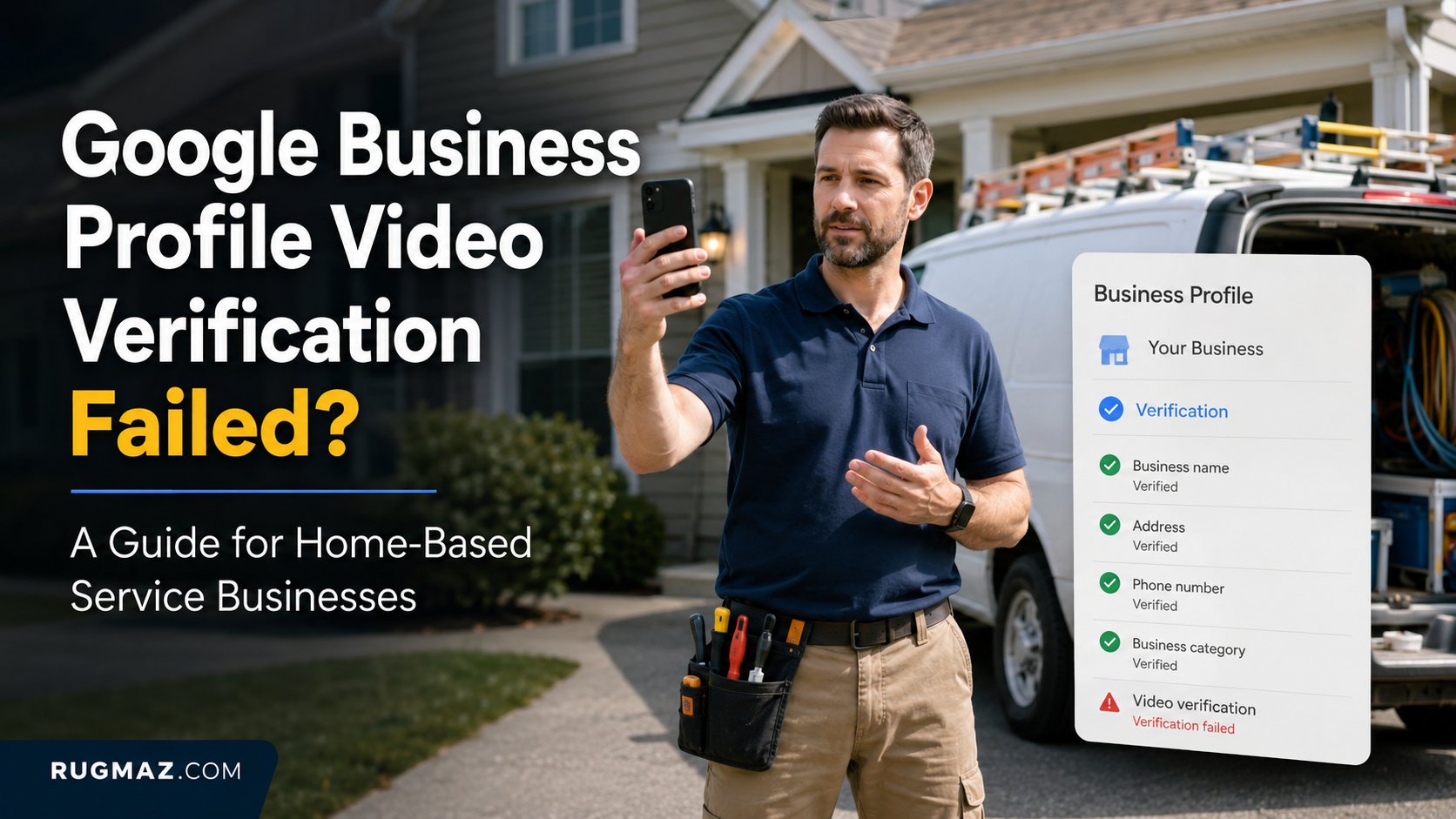
Google’s video verification guidance asks storefront businesses to show their location, permanent signage and proof of management. Service-area businesses may be asked to show their operating area, tools, documents or branded work assets.
Evidence quality checklist
Before uploading, confirm that:
- Documents are clear and readable
- Information is current
- Business name matches
- Address matches where relevant
- Files are not heavily cropped
- Important details are visible
- Private information not required for the appeal is protected
- Your explanation is short and factual
Do not submit a large collection of irrelevant files.
Strong evidence is consistent evidence.
Step-by-Step Google Business Profile Appeal Process for UK Businesses
UK businesses can use the Google Business Profile appeals tool for suspended or disabled profiles. The tool can also be used in the UK for certain rejected business-information edits and restricted media.
Step 1: Sign in with the correct Google Account
Use the account connected to the suspended profile.
Using the wrong account may prevent you from seeing the profile or appeal option.
Step 2: Check for an account-level restriction
If the Google Account is restricted, resolve that first.
Do not continue treating the issue as a single-profile problem when several profiles are affected.
Step 3: Correct the profile
Before appealing, fix:
- Keyword-stuffed name
- Incorrect address
- Wrong business type
- Unrelated categories
- Duplicate profiles
- Inconsistent website information
- Unsupported claims
Step 4: Prepare all evidence
Create a folder containing:
- Registration document
- Licence where applicable
- Utility bill
- Supporting photographs
- Short written explanation
Do this before opening the evidence form.
Step 5: Open the appeals tool
Select the profile you want to reinstate.
The tool may show:
- The restricted profile
- The moderation reason
- The policy connected to the action
- Whether the decision is eligible for appeal
Step 6: Review the stated policy
Do not skip this step.
Compare the policy with your profile and documents. Make any required correction before submitting.
Step 7: Submit the appeal
Use clear and professional language.
A useful explanation may follow this structure:
We reviewed the Business Profile and corrected the information to match our real-world business. The business name, address, category, website and supporting documents are now consistent. We are an active and eligible business serving customers in person. Please review the attached evidence and reinstate the profile.
Do not accuse Google, threaten legal action or include an emotional history of the problem.
Step 8: Add evidence within 60 minutes
After submitting the appeal, select the option to add evidence when available.
Upload the prepared documents and submit the form before the 60-minute period ends.
Step 9: Monitor the appeal status
The appeals tool may show statuses such as:
- Submitted
- Approved
- Not approved
- Cannot be appealed
- Eligible for appeal
Google says appeal reviews and decisions can take up to five business days. Avoid submitting multiple appeals for the same issue before receiving the decision.
Step 10: Do not create another profile
A new profile can create a duplicate and make the ownership history harder to understand.
Wait for the appeal decision.
What to Do If Your Appeal Is Rejected
A rejected appeal does not always mean the business can never return.
It often means:
- The policy problem remains
- The evidence does not match
- The business is not eligible
- The address cannot be confirmed
- The business name is unsupported
- The wrong account submitted the appeal
- Important evidence was missing
- The submitted explanation did not address the real issue
Do not resubmit the same appeal unchanged
First review:
- The profile information
- The stated policy
- Your documents
- Your website
- Your address setup
- Your business eligibility
- Owners and managers
- Duplicate profiles
Google states that an additional review may be available after a reinstatement request is denied. This gives the business an opportunity to provide new evidence that was not included in the original appeal.
Use an additional review only when you can provide clearer information or new evidence.
Do not simply write, “My business is real, please restore it.”
Explain what was corrected and how the new evidence proves eligibility.
Mistakes to Avoid During Reinstatement
Do not:
- Create a new profile
- Submit several appeals
- Change the name repeatedly
- Move the map pin randomly
- Add more keywords
- Use another virtual office
- Purchase fake reviews
- Remove genuine business information
- Ask different agencies to submit separate requests
- Delete the profile from your account
- Submit unclear documents
- Use an unrelated utility bill
- Hide important inconsistencies
Each action should make the business identity clearer, not more complicated.
How to Prevent Future Google Business Profile Suspensions
After reinstatement, create a simple profile-management policy.
Keep the business name accurate
Use the same name on:
- Profile
- Website
- Signage
- Invoices
- Company documents
- Directories
Protect account ownership
The business owner should control the primary account.
Give agencies manager access rather than transferring complete ownership unnecessarily.
Review profile information every month
Check:
- Hours
- Address
- Telephone number
- Website
- Categories
- Services
- Managers
Avoid unnecessary edits
Do not change important information only to test ranking improvements.
A category, address or identity change should reflect a real business change.
Keep evidence ready
Maintain a folder containing:
- Current registration
- Recent utility bill
- Business licence
- Signage photographs
- Contact information
- Website details
This can make future verification or appeal requests easier.
Final Thoughts
A Google Business Profile suspension should be treated as an identity, eligibility or policy problem—not simply a technical error.
Do not rush to appeal.
First confirm:
- The business is eligible
- The name is accurate
- The location is genuine
- The business type is correct
- The website matches
- No duplicate exists
- The managing account is in good standing
- Your documents support the profile
Then submit one clear appeal with strong, consistent evidence.
The best appeal does not contain the longest explanation. It makes it easy to understand that the business is real, accurately represented and eligible to appear on Google.
Rugmaz helps UK businesses diagnose Google Business Profile suspensions, correct local SEO problems and build a stronger presence across Google Search and Maps. The goal is not only to recover the profile, but also to protect its long-term visibility and turn local searches into genuine enquiries.
Frequently Asked Questions
Common reasons include an inaccurate business name, an invalid address, duplicate listings, service-area setup problems, an ineligible business model, misleading information or an account-level restriction.
The appeals tool may show the moderation reason and the related policy.
Yes, an eligible business may request reinstatement after correcting the problem and preparing supporting evidence.
Approval is not guaranteed. The profile must follow Google’s policies.
No.
Google advises businesses not to create another profile for the same company while an appeal is under review.
Google states that appeal reviews and decisions can take up to five business days. Some cases may require further support or verification.
Useful evidence may include official business registration, a business licence, tax documents and utility bills. The business name and address should match the profile.
Your appeal may be rejected because the business information remains incorrect, the documents do not match, the evidence is unclear or the business does not meet eligibility requirements.
Review the entire profile before requesting an additional review.
A genuine address change is allowed, but Google may reject or review significant location edits. Make sure the new location is real, eligible and supported by documents.
A service-area business may operate from home, but the address should be hidden if customers do not visit it. Use accurate service areas instead.
Only when the business genuinely operates there, has clear signage, receives customers and is staffed by its own team during business hours.
An account-level restriction can affect profiles connected to the restricted merchant account. Review profile ownership and manager access if several listings are suspended together.