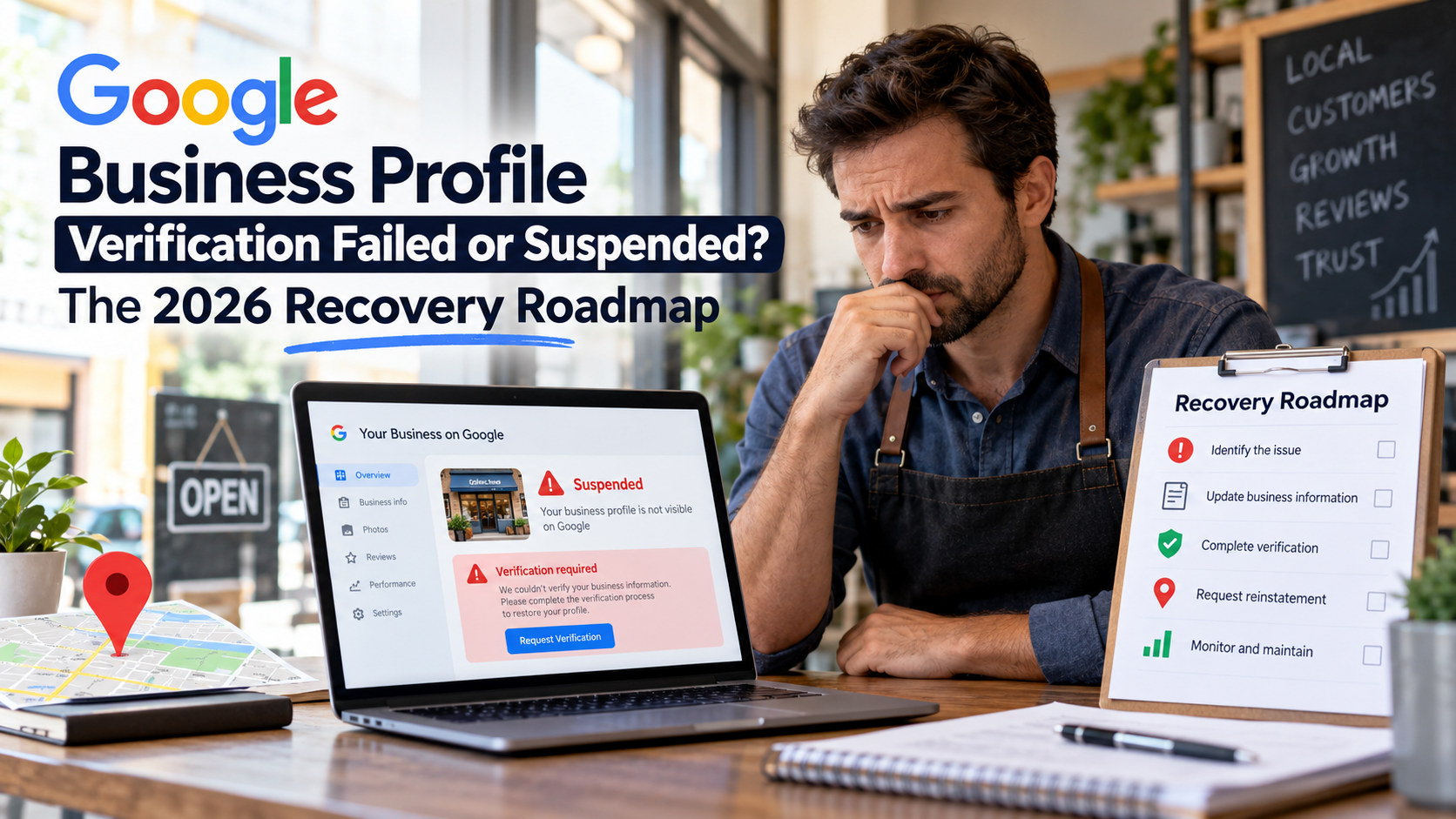
Quick answer: A failed video verification and a suspended Google Business Profile are two different problems with two different fixes. Verification fails because your video did not prove enough. A suspension happens because Google believes something on your listing breaks its guidelines. Work out which one you have first, then follow the matching path below. Do not keep re-recording videos or filing appeals at random, because that is how most businesses end up stuck for weeks.
What is in this guide
- Which problem do you actually have? (2-minute diagnosis)
- Path A: your video verification failed
- Path B: your profile is suspended or disabled
- Path C: you failed verification and then got suspended
- The evidence kit every business should prepare
- Mistakes that quietly kill recoveries
- When it is worth getting help
- FAQs
1. Which problem do you actually have? (2-minute diagnosis)
Most of the searches we see for this topic sound like this: “I keep failing the Google Business Profile video verification”, “reinstate disabled Google Business Profile” and “recover suspended Google listing”. They look similar, but they describe different situations.
You are in Path A if:
- Your profile has never been fully verified, or you were asked to re-verify.
- You recorded a video and saw a message that it was “not successful” or needs another attempt.
- Your listing is not live, or shows a verification prompt in your dashboard.
You are in Path B if:
- Your profile was previously live and verified.
- You now see a “Suspended” or “Disabled” notice, or the listing has vanished from Maps and Search.
- You received an email from Google naming a policy issue, or a vague one.
You are in Path C if:
- You failed verification several times, then the listing was suspended or flagged.
- You changed your business name, address or category shortly before the problems started.
If you are unsure, open your Business Profile dashboard and read the exact wording of the status message. Take a screenshot of it. You will need it later.
2. Path A: your video verification failed
Google describes video verification as available for storefront, service-area and hybrid businesses, and says your video requirements depend on your business type. Its own help page is blunt about what happens on a miss: your video likely did not meet the requirements, so record a new one that does. You can read the current wording on Google’s video verification help page.
The key idea is that the video is evidence, not a tour. Google is trying to confirm three things: the business exists, it operates at the location you gave, and you are authorised to manage it.
The 8 most common reasons a verification video fails
- The video was not one continuous take. Cuts, pauses or edits break the chain of proof.
- Nothing connected the location to the surrounding area. Show the street, neighbouring businesses or a recognisable landmark before you walk in.
- No visible business name. Storefronts need permanent signage in shot. Service-area businesses need branded materials, vehicles or uniforms.
- No proof you actually operate there. Show the tools, equipment, stock or workstation you use to deliver the service.
- No “insider” action. Authorised people do things visitors cannot, such as unlocking the door, opening the till, or logging into a business system.
- Shared or virtual address. Serviced offices and co-working spaces often fail because the video cannot show a space that is clearly yours.
- Service-area businesses filming at home with nothing business-related in view. If you work from a home office, the evidence has to show the business, not just a house.
- Poor filming conditions. Shaky footage, darkness, or a camera that moves too fast makes signage and documents unreadable.
These are practical patterns drawn from Google’s requirements and from what verification specialists report, not an official Google list. Always check your own on-screen feedback, because Google tells you which requirements were missed. Google’s guidance is to review those issues before you record again.
A re-record plan that works
- Read the feedback first. Open the issue details in your profile before you touch the camera.
- Write a shot list. Street and surroundings, exterior and sign, entrance, workspace, equipment, branded items, then an insider action.
- Rehearse once without recording. Walk the route and check lighting, signal and where the sign will be in frame.
- Record on location, in one take, through the Business Profile flow. Pre-recorded or edited footage is not accepted.
- Keep private information out of shot. Never film personal ID or private customer data.
- Upload and wait. Do not submit a stack of new videos. Each failed attempt gives you less room for error.
If you still cannot pass, Google says you can try another verification method if one is available to your business.
3. Path B: your profile is suspended or disabled
A suspension is a policy decision, not a technical glitch. Google’s help page for suspended and disabled profiles explains that you reinstate by using the Business Profile appeals tool, sometimes with optional evidence attached, and that a denied request may qualify for an additional review. See Google’s guide to fixing suspended or disabled profiles.
The mistake we see most is businesses appealing before they have found the cause. Appeal second, investigate first.
Step 1: find the likely trigger
Compare your listing against Google’s guidelines for representing your business. Common triggers include:
- Business name stuffed with keywords or locations instead of your real-world name.
- A virtual office, mailbox or shared address presented as a staffed location.
- A service-area business showing a home address publicly when it should be hidden.
- Wrong or misleading categories, or a recent category change.
- A recent edit to name, address or phone, especially several at once.
- Prohibited or restricted content, or links that look like spam.
- Ownership or management disputes, such as an old agency still holding access.
Step 2: fix everything, not just one thing
Google may re-review the whole listing when you appeal. Correct the name, address, categories, hours, website link and photos together so you do not fail on a second issue you overlooked.
Step 3: gather proof before you file
The evidence should match your business type. For a storefront, think signage photos, a lease or utility bill showing the business name and address, and a business registration. For a service-area business, think a registration document, branded vehicle or equipment photos, insurance, and invoices that show your name and service area. Keep every file legible and consistent with what is on the listing.
Step 4: submit once, then wait
Submit a single, well-prepared appeal through the appeals tool. Responses can take days or even weeks, and reports of delays have come from both Google and the local SEO community. Resubmitting repeatedly does not speed things up and can confuse the case record.
Step 5: if it is denied
Read the denial wording closely, correct what it points to, and use the additional review option Google offers for denied requests. Do not open a fresh listing for the same business while the original is still suspended, because that can cause duplicates and further trouble.
4. Path C: you failed verification and then got suspended
This is the messiest situation, and it is more common than people admit. Repeated failed attempts, combined with edits to your business details, can look like instability to Google.
If this is you:
- Stop all edits. No more name, address or category changes.
- Document the current state. Screenshot the dashboard, the status message and your public listing.
- Audit your listing against the guidelines using the checklist in Path B.
- Prepare your evidence kit (below) and make sure it matches the listing exactly.
- Resolve the suspension first, then deal with verification once the profile is reinstated.
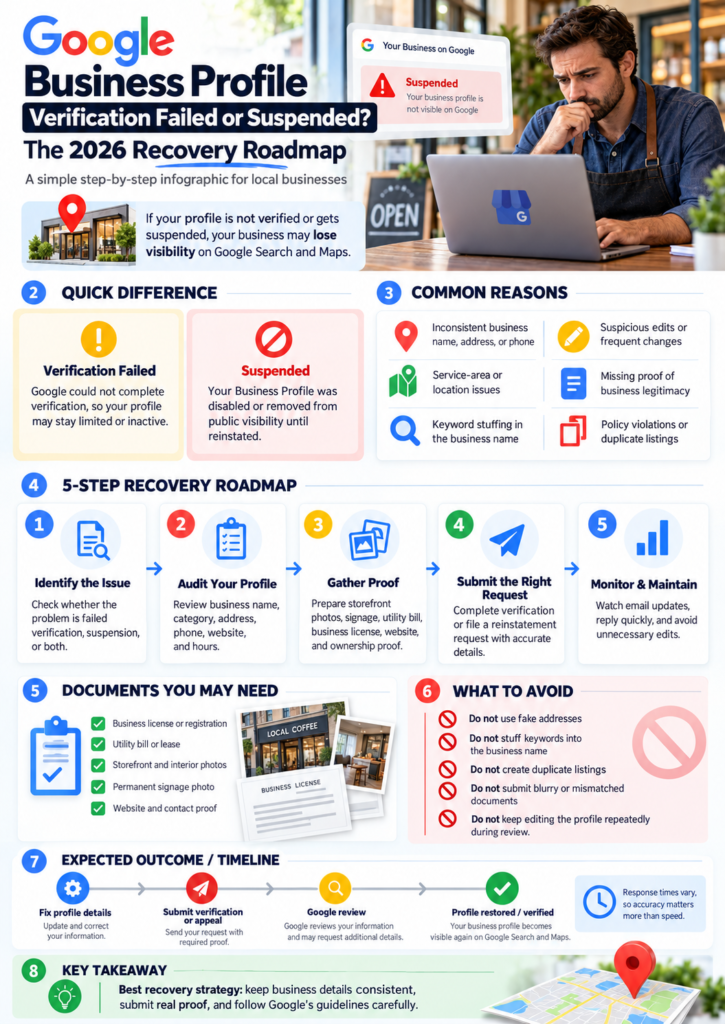
5. The evidence kit every business should prepare
Build this folder before you need it. It makes verification, appeals and later disputes far easier.
- Clear photos of your exterior signage, entrance and interior workspace
- A short, well-lit walkthrough of your route from street to workspace
- Business registration or licence, and any trade accreditation
- A recent utility bill, lease or council tax bill showing the business name and address
- Branded materials: vehicle, uniform, business cards, stationery
- Photos of your equipment, stock or workstation
- Proof of management, such as access to your booking or point-of-sale system
- A written timeline of what you changed on the listing and when
Redact personal details that are not needed, and keep every document consistent with the name and address shown on your profile.
6. Mistakes that quietly kill recoveries
- Re-recording over and over without reading feedback. Each attempt should fix something specific.
- Editing the listing while under review. Changes reset your context.
- Using a keyword-heavy business name because competitors do. They may be next to be suspended.
- Letting an old agency or freelancer stay as owner. Verify who controls access before you do anything else.
- Filing a rushed appeal with weak evidence. A thin first case is hard to undo.
- Buying shortcuts. “Guaranteed reinstatement” promises are a red flag.
7. When it is worth getting help
You can fix most Path A problems yourself in an afternoon. Help becomes worthwhile when you have been suspended with no clear reason, when you run a service-area or hybrid business with no public premises, when multiple appeals have failed, or when the listing is a major source of your enquiries and every week offline costs money.
If that sounds like you, our team can review your case and tell you honestly what is fixable. Start with our guides on what to do when a Google Business Profile video verification fails, how to recover a suspended Google Business Profile, and the step-by-step suspended or disabled profile fix. Once you are back online, our local SEO best practices will help you protect and grow the listing, and our SEO services for UK startups can build the rest of your visibility.
8. FAQs
Why does my Google Business Profile video verification keep failing?
Usually because the video did not show enough evidence. Common gaps are no clear signage, no proof of equipment or operations, no insider action such as unlocking a door, and edited or non-continuous footage. Check the issue details Google shows you, then re-record with a planned shot list.
How many times can I retry video verification?
Google allows you to submit a new video if the last one did not meet the requirements, but it does not publish a guaranteed retry count. Treat each attempt as precious and fix the specific problems before you record again.
Can I verify without a video?
Sometimes. Google says that if you cannot pass video, you can try another verification method when one is available to your business. Availability varies by business and location.
How long does reinstatement take?
There is no fixed timeline. It can take days or several weeks, and it depends on the quality of your case and Google’s workload. Submitting once with strong evidence is better than submitting often.
Should I create a new listing if mine is suspended?
No. Opening a second listing for the same business can create duplicate problems and may hurt your original appeal.
Does a suspended profile hurt my website rankings?
Your website’s organic rankings are separate from your Business Profile, but you will lose Maps visibility, calls and direction requests while the profile is down. That is why a clean, consistent website and strong local SEO matter as a backup.
Can a business with no shop front pass video verification?
Yes, service-area businesses can verify by video, but they need to show evidence of real operations, such as branded vehicles, equipment, documents and a clear business workspace.
Final checklist
- I know whether I am in Path A, B or C
- I have screenshots of my status message
- My listing matches Google’s guidelines
- My evidence kit is ready and consistent
- I will submit one strong attempt, not many weak ones
Need a second pair of eyes? Talk to Rugmaz and we will tell you which path you are on and what to do first.